
Understand your AWS bill. Ask Luis what to do next.
Finoptic shows your AWS spend across every account, warns you before costs run away, and gives you Luis: an AI FinOps consultant who answers questions about your bill in plain English.
Built on your AWS Cost and Usage Report, so the numbers match your invoice.
Luis
FinOps assistant
You: What drove my biggest cost increase this month?
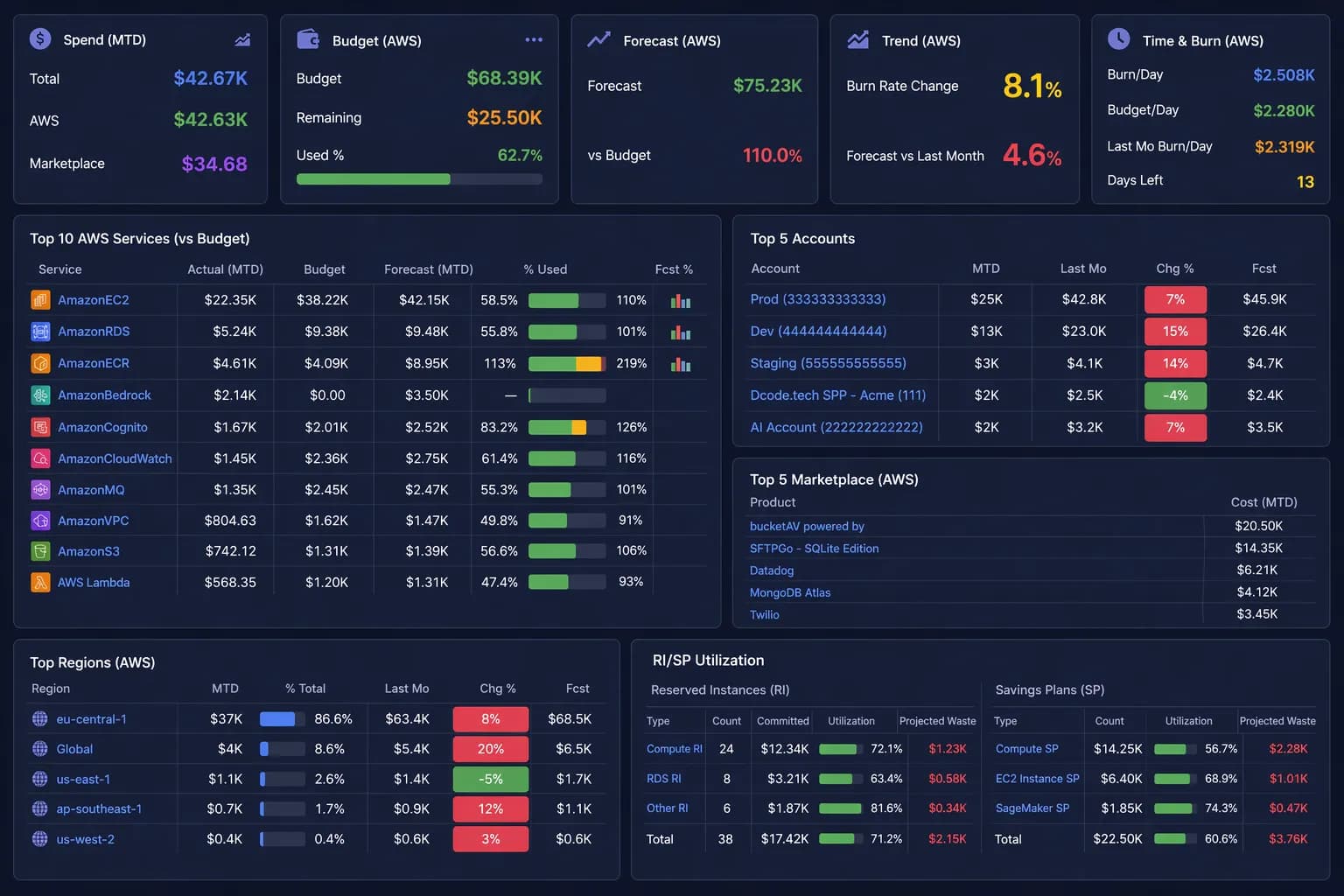
Luis: Amazon ECR. It has already used 113% of its monthly budget, and the forecast is $8.95K against a $4.09K budget. Want me to split it by account and usage type?
Ask Luis about your cloud spend
Luis is the AI FinOps consultant inside Finoptic. He is one click away on every page. Ask him what you would ask a FinOps expert, and he answers from your real cost data.
- Sees what you see: the dashboard, time range and filters on your screen.
- Only quotes numbers he fetched from your own cost data.
- Explains and advises. He never changes anything in your AWS account.
- Runs on your own AI provider: Amazon Bedrock, OpenAI or Anthropic.
What drove my biggest cost increase this month?
Finds the service that moved most and explains why, down to the usage type.
Compare this month’s spend to last month.
Reads the trend across months, service by service.
Find idle resources I can shut down.
Looks for things you pay for but do not use.
Run a full FinOps session on my whole bill.
Works through your bill round after round, then brings back the full picture.
What does this CloudFormation template create?
Reviews a plugin before you install it: what it creates, the permissions it grants, and what it can touch.
Every Monday, compare last week’s spend to the week before.
Turns it into a scheduled check and emails you a short brief: Heads-up or All clear.
Everything you need to keep AWS spend in check
See where the money goes. Add plugins when you need more.
All accounts in one view
Month-to-date spend, the biggest movers and the forecast for every AWS account, on one home page.
Drill down to the cause
Slice spend by account, service, region and tag. Click a cost increase and land on its details.
Budgets and forecasts
Set monthly budgets per account, service or tag. Import the plan from a spreadsheet and track real spend against it.
Budget and anomaly alerts
Get an email or Slack message when spend crosses a threshold, heads past the budget, or moves in an unusual way.
Extended support alerts
Hear 90, 60, 30 and 15 days before AWS moves a resource to paid extended support. An EKS cluster goes from $0.10 to $0.50 per hour.
Savings Plans and RIs
See how much of your Savings Plans and Reserved Instances you really use, and the waste they are heading for.
Monthly FinOps review
Each month the Dcode team publishes your review in Finoptic: what last month cost, what moved and why, and what to do next.
Plugins and automations
Add views for EKS, storage and network cost. Automations, like VPC endpoints, are applied by you after you review the exact template.
How Finoptic works
Connect your AWS accounts
We connect Finoptic to your AWS Cost and Usage Report and give you your own private Finoptic to sign in to.
See your spend and get alerts
Dashboards show where the money goes. Budgets and alerts tell you by email or Slack when something changes.
Act with Luis and Dcode
Ask Luis why a cost moved and what to do about it. Go over the monthly review with the Dcode team, and make changes on your terms.
See Finoptic on your own AWS bill
We connect Finoptic to your AWS environment and show you where you are overpaying, usually within 48 hours. No commitment.
Already a customer? Sign in to Finoptic